What to do when your Google adsense account shows error for Ads.txt file?
What to do when your Google Adsense account shows error for Ads.txt file?
When you are trying to make revenue through your website or your blogging website, you need to register on Google Adsense account so that Google can run advertisement on your website.
You create your Google Adsense account however it shows the error that your Ads.txt file is not updated on your website. This is required so that Google recognizes you as a authorized seller on Google Adsense platform.
You can follow the below mentioned steps to add ads.txt file your word press website
What to do when your Google Adsense account shows an error for Ads.txt file?
Check ads.txt Error in AdSense Account
- Log in to Google AdSense
- Go to Sites
- Select your website
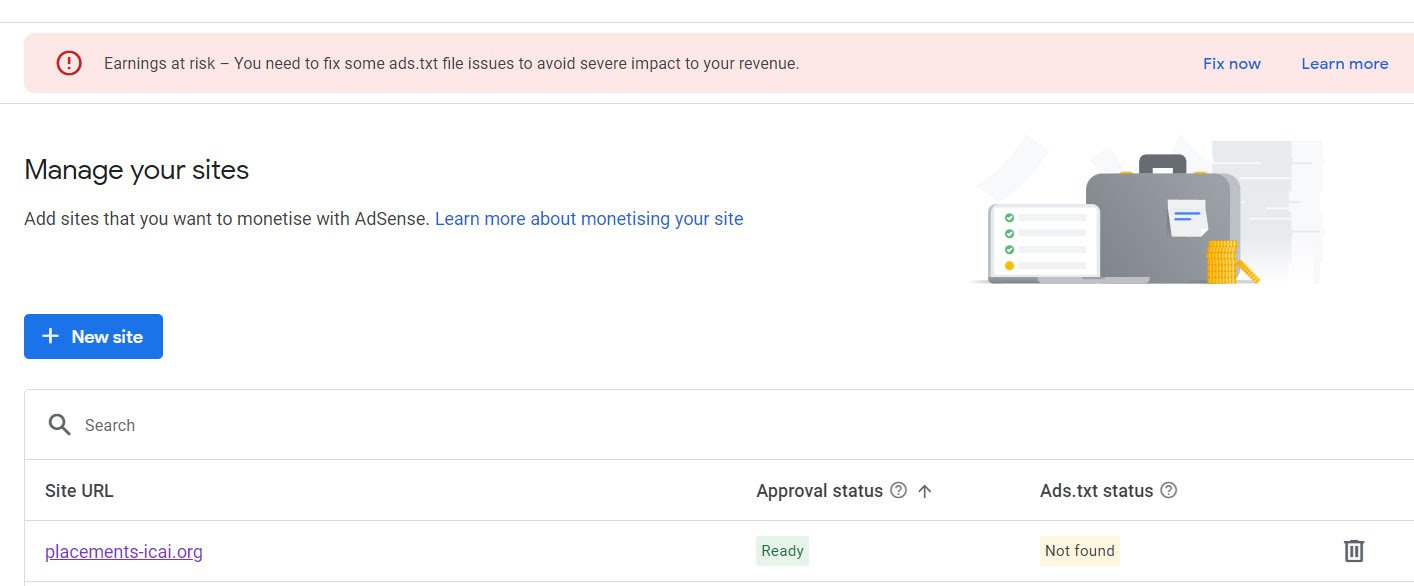
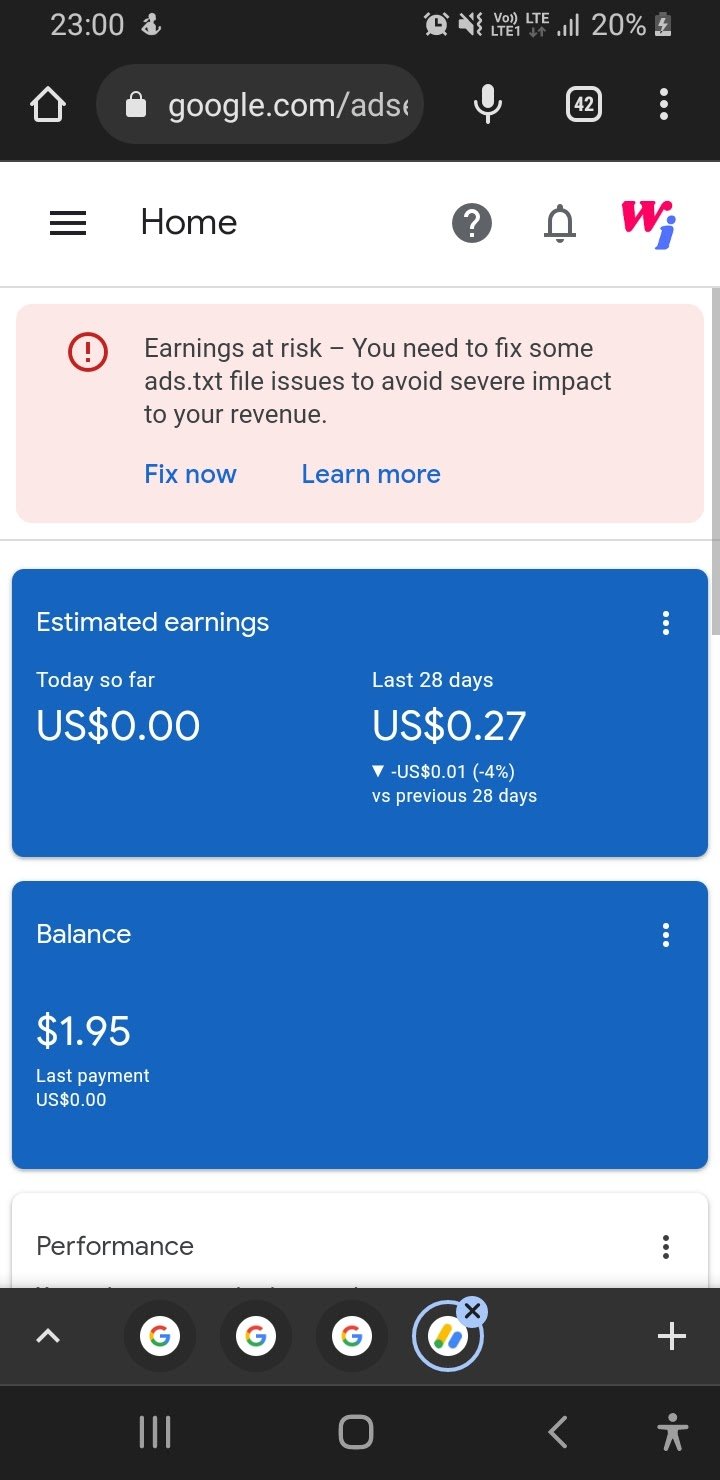
- You may see a warning:
“Earnings at risk – You need to fix ads.txt issues”
This confirms the ads.txt error.
Why ads.txt Error Occurs
The ads.txt error usually occurs because:
- The ads.txt file is missing
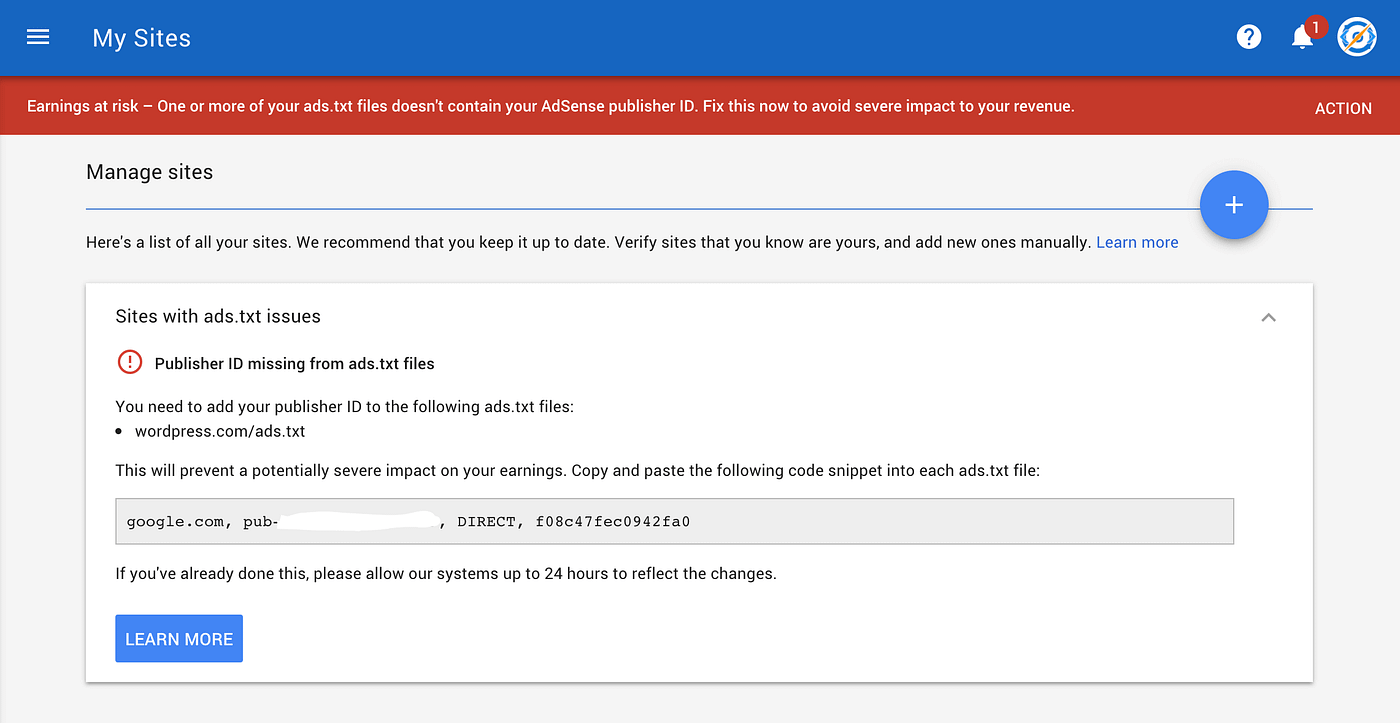
- The Publisher ID is not added
- The Publisher ID is incorrect
- Google cannot verify your authorization to serve ads
This is a common and expected issue for new AdSense users.
How to Fix ads.txt Error in WordPress
The simplest solution is to use a WordPress plugin.
Step 3: Install Ads.txt Plugin
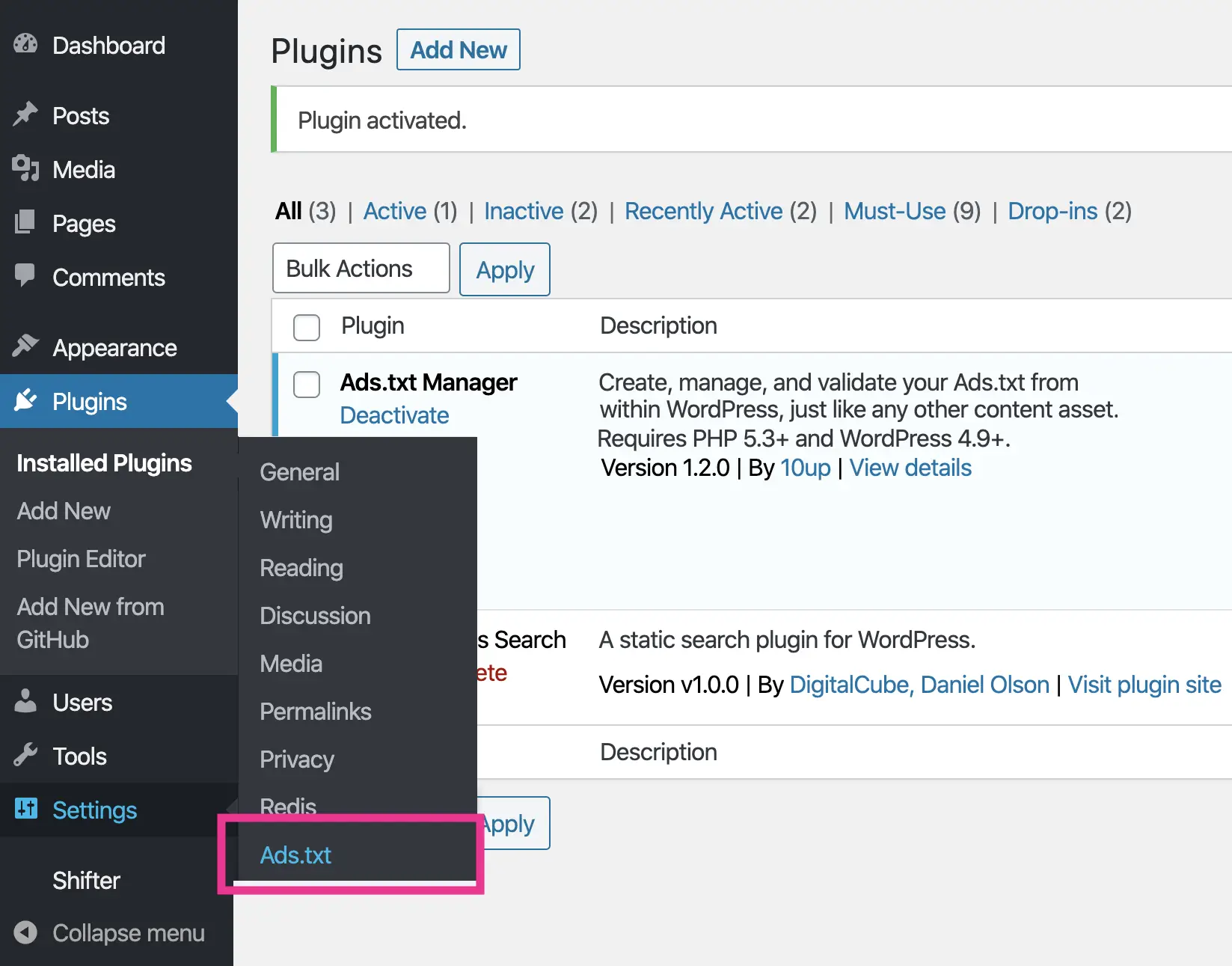
- WordPress Dashboard → Plugins → Add New
- Search for Ads.txt Manager
- Install and activate the plugin
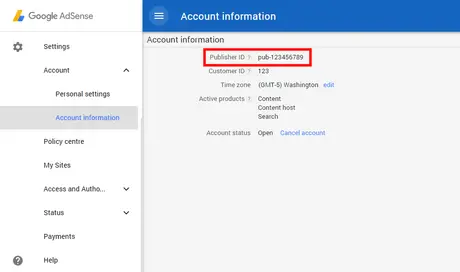
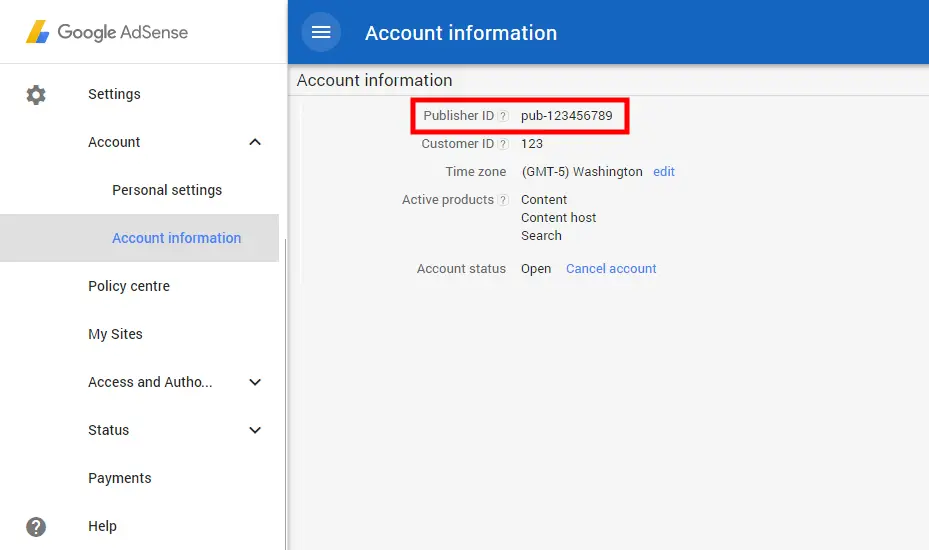
Step 4: Find Your Publisher ID
- Log in to Google AdSense
- Go to Settings → Account information
- Copy your Publisher ID
It looks like:
pub-1234567890123456
Step 5: Update Publisher ID Using the Plugin
- WordPress Dashboard → Settings → Ads.txt
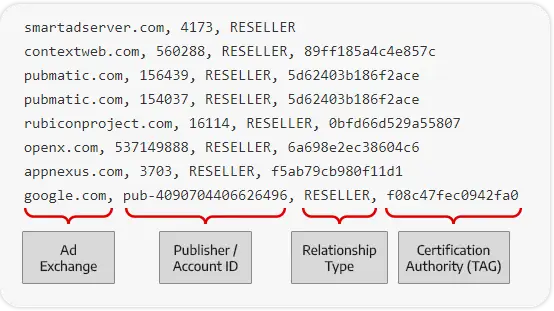
- Add the following line (replace with your ID):
google.com, pub-1234567890123456, DIRECT, f08c47fec0942fa0
- Save changes
Final Step: Verify ads.txt
- Open your browser
- Visit:
https://yourdomain.com/ads.txt
- Confirm the Google AdSense line is visible
The ads.txt warning in AdSense will disappear within 24–72 hours.