
Writing a post is only half the job. You still have to copy it into WordPress, fix the headings, rebuild the tables and check the format. If you post often, this takes a lot of time. In this post, I show how I automated this step with a Claude skill. Now I write in Claude, say “post this to the blog”, and a draft appears in WordPress, ready for review.
What you will build
A small Claude skill that:
- takes any content you give it (a doc, notes, markdown or HTML),
- removes internal material that should not go public,
- converts it to clean WordPress HTML,
- creates it as a draft on your WordPress site through the REST API.
You still review the draft and click Publish yourself. Claude never publishes.
What you need
| Item | Why |
|---|---|
| A self-hosted WordPress site (5.6 or later) on HTTPS | Application Passwords are built into WordPress from version 5.6 |
| A WordPress user for Claude | Keeps Claude’s access separate from your admin login |
| An Application Password for that user | Lets Claude post through the API without your main password |
| Claude with skills and code execution turned on | The skill runs a short Python script to call the API |
| Your site’s domain in Claude’s allowed network domains | Otherwise Claude cannot reach your site |
Step 1: Create a separate WordPress user for Claude
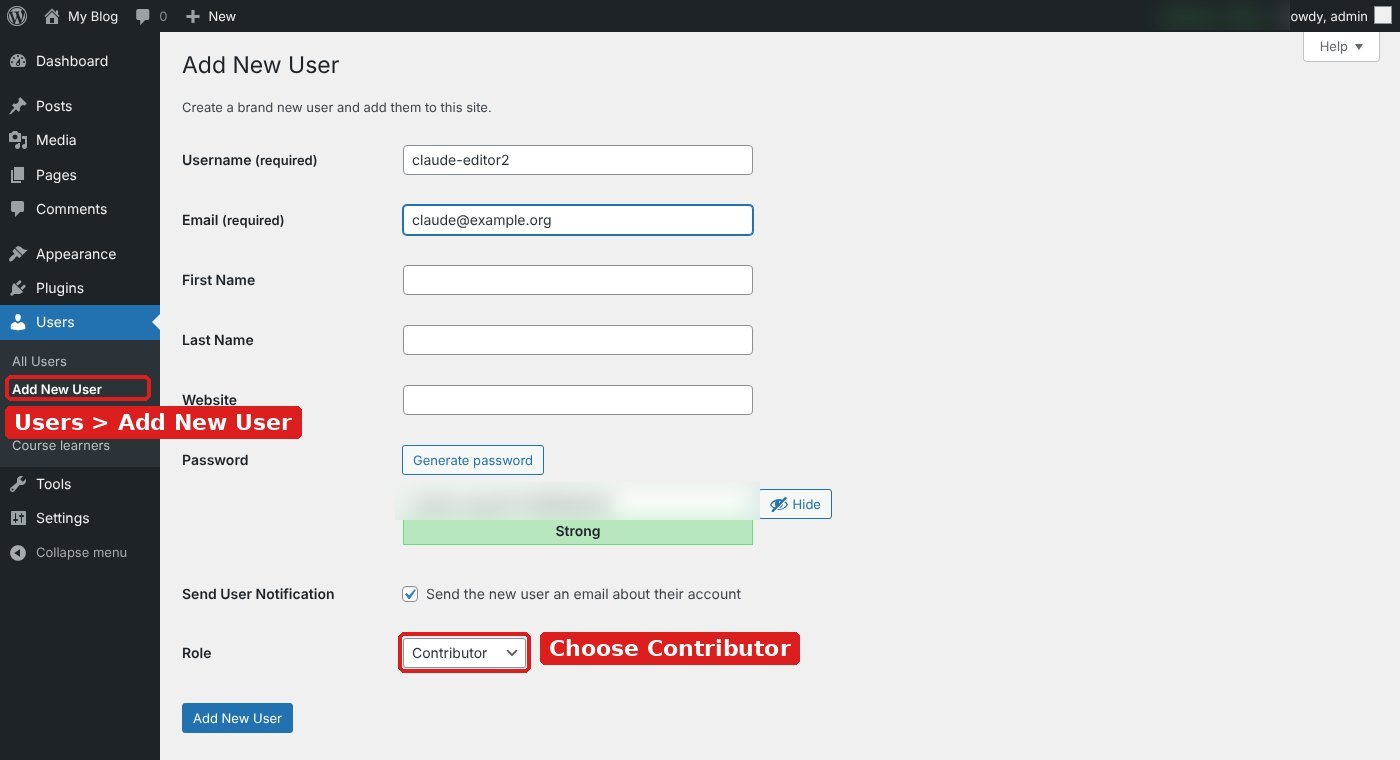
In WP Admin, go to Users → Add New. Create a user such as claude-editor.
Choose the role carefully:
- Contributor (recommended): can create drafts only. Cannot publish or delete posts. Cannot upload images.
- Author: can publish and upload images, but only for their own posts.
- Editor: can publish, edit or delete any post. Use only if you need it.
Lower roles mean less damage if the password ever leaks.
Step 2: Create an Application Password
- Log in as admin and open the new user’s profile (Users → All Users → claude-editor).
- Scroll to Application Passwords.
- Type a name, for example “Claude”, and click Add New Application Password.
- Copy the password shown. WordPress shows it only once.

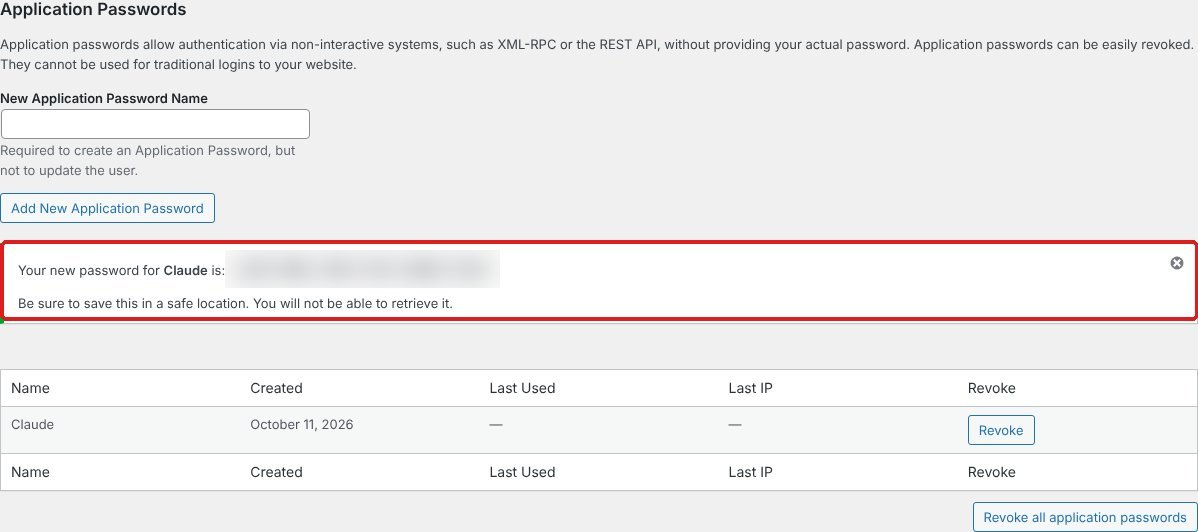
An Application Password works only for the API. It cannot be used to log in to WP Admin, and you can revoke it at any time without changing the user’s main password.
Tip: if you get a “404” on /wp-json later, a security plugin may be blocking the REST API. Allow it for logged-in API requests.
Step 3: Write the skill
A Claude skill is a folder with a SKILL.md file. The top of the file has a name and a short description. Claude reads the description to decide when to use the skill. The rest of the file is the instructions Claude follows. A skill can also hold scripts.
My folder looks like this:
wordpress-blog-post/
├── SKILL.md
└── scripts/
    └── post_draft.py
SKILL.md
---
name: wordpress-blog-post
description: Post content to my WordPress site as a DRAFT via the
  REST API and an Application Password. Use whenever I ask to post,
  publish, upload or put any content on the blog.
---

# Post a draft to my WordPress site

## Hard rules
- Never publish. Always status: draft.
- Never store or repeat the password. Pass it as an
  environment variable only.
- Remove internal material before posting.

## Step 1: Clean the content
Remove internal file names, exam content, internal labels and
anything not meant for the public. Do not rewrite anything else.

## Step 2: Convert to WordPress HTML
- Title goes in the API title field, not the body.
- Use h2, h3, p, ul/ol and table. No custom CSS or scripts.
- Sources at the bottom in small font.
Save the body to post.html.

## Step 3: Test the connection
WP_USER='claude-editor' WP_APP_PASSWORD='...' \
  python3 scripts/post_draft.py --test
- 401: wrong username or password.
- 403: role too low.
- 404 on /wp-json: REST API blocked by a plugin.
- Network error: add the domain to Claude's allowed domains.

## Step 4: Create the draft
WP_USER='claude-editor' WP_APP_PASSWORD='...' \
  python3 scripts/post_draft.py --title "Title" --html post.html

## Step 5: Reply
Give the edit link, list what was removed, remind me to review
and publish.
scripts/post_draft.py
This script uses only the Python standard library. Change SITE to your own domain.
import argparse, base64, json, os, sys, urllib.request, urllib.error

SITE = "https://your-site.com"
API = SITE + "/wp-json/wp/v2"

def headers():
    user = os.environ["WP_USER"]
    pwd = os.environ["WP_APP_PASSWORD"]
    token = base64.b64encode(f"{user}:{pwd}".encode()).decode()
    return {"Authorization": "Basic " + token,
            "Content-Type": "application/json"}

def call(method, url, body=None):
    data = json.dumps(body).encode() if body else None
    req = urllib.request.Request(url, data=data,
                                 headers=headers(), method=method)
    try:
        with urllib.request.urlopen(req, timeout=30) as r:
            return r.status, json.loads(r.read() or b"{}")
    except urllib.error.HTTPError as e:
        return e.code, json.loads(e.read() or b"{}")

p = argparse.ArgumentParser()
p.add_argument("--test", action="store_true")
p.add_argument("--title")
p.add_argument("--html")
a = p.parse_args()

if a.test:
    s, d = call("GET", API + "/users/me?context=edit")
    print(s, d.get("slug"), d.get("roles"))
else:
    html = open(a.html, encoding="utf-8").read()
    s, d = call("POST", API + "/posts",
                {"title": a.title, "content": html, "status": "draft"})
    if s in (200, 201):
        print(f"{SITE}/wp-admin/post.php?post={d['id']}&action=edit")
    else:
        print("FAILED", s, d.get("message"))
Step 4: Add the skill to Claude
- Zip the folder (
wordpress-blog-post.zip). - In Claude, open Settings → Capabilities and make sure code execution and skills are on.
- Upload the zip under Skills.
- In the same settings, add your site’s domain to the allowed network domains.
You can also ask Claude to write or update the skill for you in a chat. It shows the skill for review before saving.
Step 5: Use it
Start a chat and type something like:
“Post the full-stack digital marketer learning path to my blog. Username claude-editor, password …”
Claude then:
- loads the skill,
- cleans and converts the content,
- tests the connection,
- creates the draft,
- replies with the edit link and a one-line list of what it removed.
Open the link, check the post, add a featured image and click Publish.
Keep it safe
- Drafts only. Keep the “never publish” rule in the skill. A human should always click Publish.
- Do not save the password in the skill. Skill files sync to your account. Paste the password in the chat when you need a post.
- Use the lowest role that works. Contributor is enough for drafts.
- Change the password often. Revoke it and make a new one every few months, or at once if you think it leaked.
- Keep 2FA on for your own admin account.
What else you can automate
- Set categories and tags by adding
categoriesandtagsIDs to the API request. - Add an excerpt or SEO description in the same request.
- Update an existing draft by sending a POST to
/wp-json/wp/v2/posts/<id>. - Upload a featured image through
/wp-json/wp/v2/media(needs Author role or above).
FAQ
Do I need a plugin? No. The REST API and Application Passwords are part of WordPress core.
Does this work on WordPress.com? This guide is for self-hosted WordPress. WordPress.com uses a different API and login method.
Can Claude publish directly? It can if the role allows it, but I do not recommend it. Keep the draft step so you check every post.
Why not just copy and paste? Copy and paste works for one post. The skill saves time when you post often, and it applies the same clean-up and format rules every time.
Sources: WordPress: Application Passwords Integration Guide; Claude: Skills how-to; Claude Docs: Agent Skills; Claude Help Center: Skills.