
Quick answer: Channel attribution in Google Analytics 4 decides which marketing channels get credit for a key event, such as a lead or sale. GA4 offers data-driven and last click models. You set the model in Admin → Attribution settings and see the paths in Advertising → Key event attribution paths.
Customers rarely buy on the first click. A person may see your Instagram ad, later watch a YouTube video, then search on Google and buy. Which channel should get the credit for this sale? Channel attribution answers this question.
A simple example from real estate
A broker brings a lead and arranges a site visit. The customer does not buy. A month later, the developer’s own digital marketing team runs a campaign. The same customer clicks the ad, visits the site again and buys. Should the broker get the commission?
Many real estate companies solve this with a rule: if the sale happens within a set period (say 60 days) after the broker’s visit, the broker gets the commission. After that period, the credit goes to the latest channel. This is exactly what attribution does for digital channels: it sets rules for who gets the credit.
Common attribution models
| Model | How credit is given |
|---|---|
| Last click (last touch) | All credit goes to the last channel before the conversion |
| First click (first touch) | All credit goes to the first channel |
| Linear | Credit is split equally across all channels |
| Time decay | Channels closer to the conversion get more credit |
| Data-driven | Credit is based on your own account data, using machine learning |
The rule-based models (first click, linear, time decay, position-based) make sense in some businesses and not in others. That is why analysts prefer a data-driven model. Since 2023, Google Analytics 4 and Google Ads offer only data-driven and last click. The older models were removed, but it is still useful to understand them.
What the data-driven model looks at
The data-driven model checks how different touchpoints affect the conversion, including:
- time from conversion,
- device type,
- number of ad interactions,
- order of ad exposure,
- type of creative assets.
Step 1: Create a key event
Attribution needs a conversion to give credit for. In GA4, conversions are now called key events.
- Create an event for your business result, for example a form submission or purchase.
- In Admin → Events (or Key events), mark that event as a key event.
Read Getting started with Google Analytics 4 if you have not set up GA4 yet.
Step 2: Check attribution settings
- Go to Admin → Attribution settings.
- Choose the reporting attribution model: data-driven or last click.
- Set the conversion window (lookback window) for acquisition key events and for other key events. This decides how far back GA4 looks for touchpoints.
Step 3: Read the attribution reports
- Click Advertising in the left menu.
- Under Key events, open Key event attribution paths. This shows the sequence of channels people took before converting, for example Paid Social → Organic Search.
- Open Key event attribution models to compare how credit changes for each channel under different models.
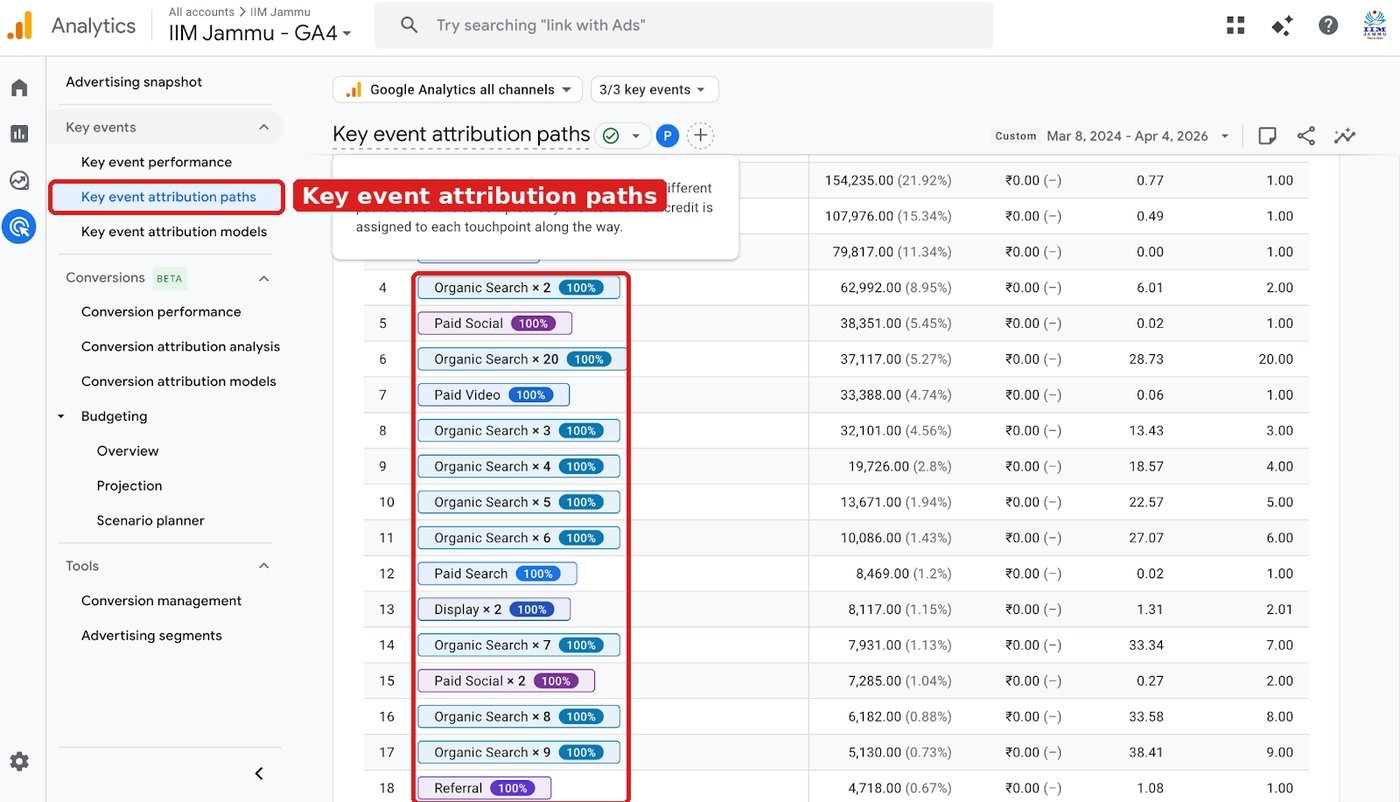
How to read it: “Organic Search × 2” means the user came twice through organic search before the key event. “Paid Social 100%” means paid social got full credit on that path. Look at the paths that bring the most key events, and at how many touchpoints they need.
Once you have enough conversions, you will see many unique journeys. Use them to understand which channels start the journey and which ones close it.
How to use this for decisions
- If a channel rarely gets last-click credit but often starts journeys, do not cut it just on last-click numbers.
- Compare cost per conversion under data-driven and last click before moving budget.
- Set a lookback window that matches your sales cycle. A long sales cycle needs a longer window.
Try it yourself
- Create one key event in your GA4 property, for example a form submission.
- Check Admin → Attribution settings and note your reporting model and lookback window.
- Open Key event attribution paths and write down the top 5 paths.
- For each top path, note the first channel and the last channel.
- Decide one budget action, for example “keep YouTube even though it rarely gets last-click credit”.
Common mistakes to avoid
- Judging a channel only on last-click results.
- Reading attribution reports before you have enough key events.
- Using a lookback window shorter than your sales cycle.
- Forgetting that offline steps (calls, site visits) are not in GA4 unless you import them.
Frequently asked questions
Which attribution model should I use in GA4?
Use data-driven if you have enough key events; it uses your own data. Use last click if you want a simple, stable view.
Why do GA4 and Google Ads show different conversion numbers?
They can use different attribution models, lookback windows and counting rules, so some difference is normal.
Sources: Google Ads Help: First click, linear, time decay and position-based attribution models are going away; Google Analytics Help: Get started with attribution