
Quick answer: To design Google Display ads, choose between static image ads and responsive display ads, prepare images, logos, headlines and descriptions, keep one clear message with a call to action, then add them to a Display campaign in Google Ads and test which assets work best.
The Google Display Network reaches millions of websites, videos and apps. It helps you find your target audience while they read, watch or browse. In this post, I explain the two types of display ads and the steps to design them.
Two types of Google Display ads
| Static image ads (uploaded image ads) | Responsive display ads | |
|---|---|---|
| What you upload | Finished images in fixed sizes | Separate assets: logo, images, headlines, descriptions |
| File formats | GIF, JPG or PNG | JPG or PNG images, plus text |
| Fits ad slots? | No. Shows only where the size matches | Yes. Google adjusts size, look and format to fit the space |
| Changes with performance? | No. The image stays as you made it | Yes. Google tests combinations and shows the better ones more |
| Best for | Full control over design | Reach and less design work |
Responsive display ads can be an effective way to make the ad creation process simpler and reach more of your audience with relevant content.
Step 1: Be clear on the objective and audience
Decide whether the ad is for awareness, traffic or leads, and who you want to reach. This decides the message and the call to action.
Step 2: Prepare your assets
For a responsive display ad, prepare:
- Images: landscape (1.91:1, recommended 1200 x 628) and square (1:1, recommended 1200 x 1200). A vertical image (9:16) is optional. Google suggests 5 to 10 images per ratio, in JPG or PNG.
- Logo: a square logo, and a wide logo if you have one.
- Short headlines: a few short headlines (up to 30 characters).
- Long headline: one longer headline.
- Descriptions: a few short descriptions. Google shows the character limit as you type.
- Business name and final URL (the landing page).
For static image ads, design the images in the standard sizes. Read Google Display ad sizes.
Step 3: Follow simple design rules
- One clear message per ad.
- Show the product or the benefit, not only the logo.
- Keep text on images small. Let the headline carry the message.
- Use a clear call to action, for example “Book a free consultation”.
- Make sure the landing page matches the ad.
Step 4: Create the ad in Google Ads
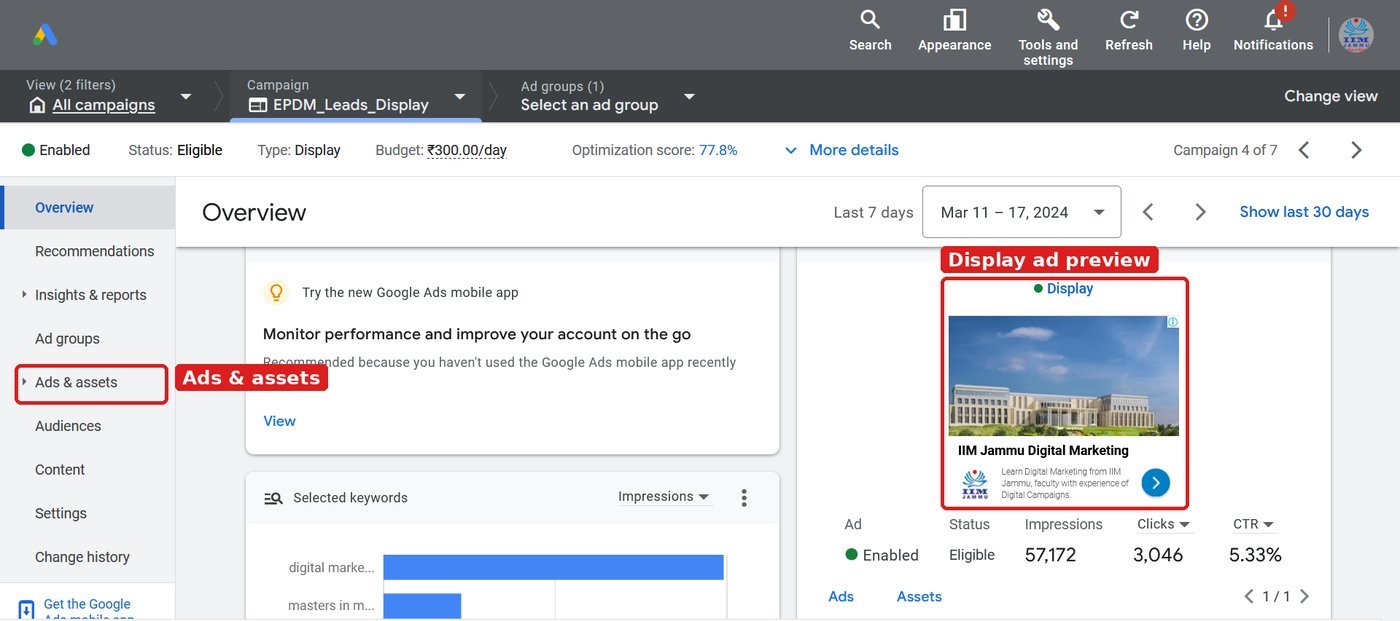
- Create a new campaign and select Display.
- Set locations, languages, budget and bidding.
- Set targeting: audiences, keywords, topics or placements. Read How to develop a list of placement websites.
- In the ad section, add your images, logos, headlines and descriptions.
- Check the preview. Google shows how the ad will look on websites, in Gmail and on YouTube.
- Check the estimates on the right side (impressions, CPM, audience size), then publish.
Step 5: Review and improve
After one or two weeks, check the asset report. Replace low-performing images and headlines with new ones. Change one thing at a time so you know what made the difference.
Worked example: assets for one responsive display ad
| Asset | Example for a modular kitchen brand |
|---|---|
| Short headline 1 | Modular Kitchens in 45 Days |
| Short headline 2 | Free Design Consultation |
| Long headline | Get a modular kitchen designed for your home, with a free site visit |
| Description | Choose from L-shaped, U-shaped and island designs. Book a free visit. |
| Images | Finished kitchen (landscape), close-up of cabinets (square) |
| Logo | Square brand logo |
| Final URL | The modular kitchen landing page, not the home page |
Try it yourself
- Pick one product and write 5 short headlines, 1 long headline and 3 descriptions.
- Prepare 3 landscape and 3 square images, plus your logo.
- Create a display campaign with a small daily budget and add the assets.
- Check the preview for websites, Gmail and YouTube.
- After 7 days, open the asset report and replace the weakest image or headline.
Common mistakes to avoid
- Putting too much text on images.
- Uploading only one image size, so the ad cannot fit many slots.
- Sending traffic to the home page instead of a matching landing page.
- Changing many assets at once, so you cannot tell what worked.
Frequently asked questions
Are responsive display ads better than image ads?
For most advertisers, yes. They fit more ad slots and Google tests combinations for you. Use static image ads when you need full design control.
What is a good CTR for display ads?
Display ads usually have a lower CTR than search ads because people are not searching. Compare your own campaigns over time rather than chasing a single number.
Sources: Google Ads Help: About responsive display ads; Google Ads Help: Best practices guide for responsive display ads